









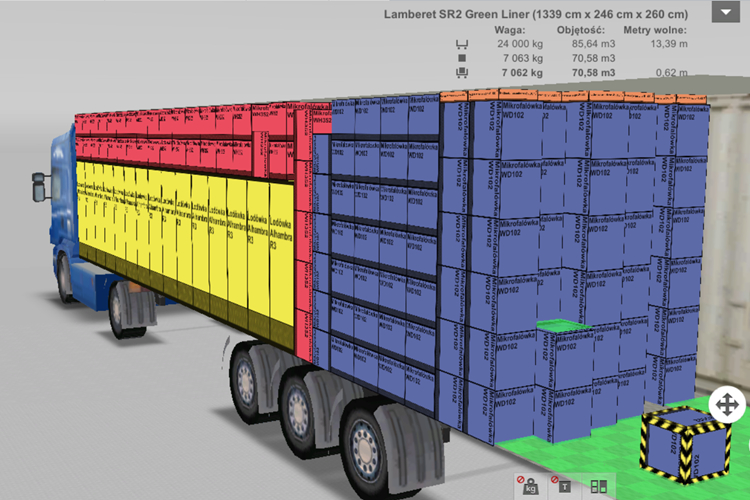
EasyCargo is software for the simulation and optimization of transport unit loading. For those who have never used such a program or simply do not understand how this type of application can be useful, you should read this article on the practical application of EasyCargo software. You can also learn more about this by reading the previous article.
Loading planning from the desktop
The person responsible for loading the transport unit launches the application and enters the necessary data. This article does not explain the process in detail; for this purpose, it is recommended to watch the tutorial videos and read the FAQ. You can also register for free in the application. The software allows for a 10-day free trial of all features with no obligations.
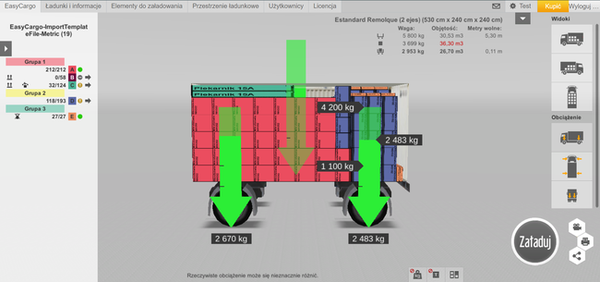
The next step is to select the cargo space (containers, trucks, trailers, semi-trailers, etc.), which can be owned or rented. When selecting the cargo space, we can adjust the dimensions, the maximum weight that can be transported, and the maximum axle load; we can also create a completely new space. Once these issues are resolved, we move on to virtual loading planning.
Information about the cargo can be entered into the program in various ways. First – manually, always using groups consisting of identical packages; second – by using MS Excel templates, which are available in the Loads and information tab; third – you can use the database of items to be loaded located in the Items to load tab; finally, you can also use the fastest and most effective way, which is connecting to an ERP system to load products that way.
Final adjustments
After loading the packages, it may be necessary to make some changes before sending the information to the operators; we still have time to use the manual changes function in the loading plan. This function allows for simple adjustments, such as positioning the cargo, moving boxes, rotating them, placing others on top, or adding a few extra boxes because the cargo space is not completely filled. To learn more about this function, we encourage you to watch the tutorial video.
 Passing information to operators
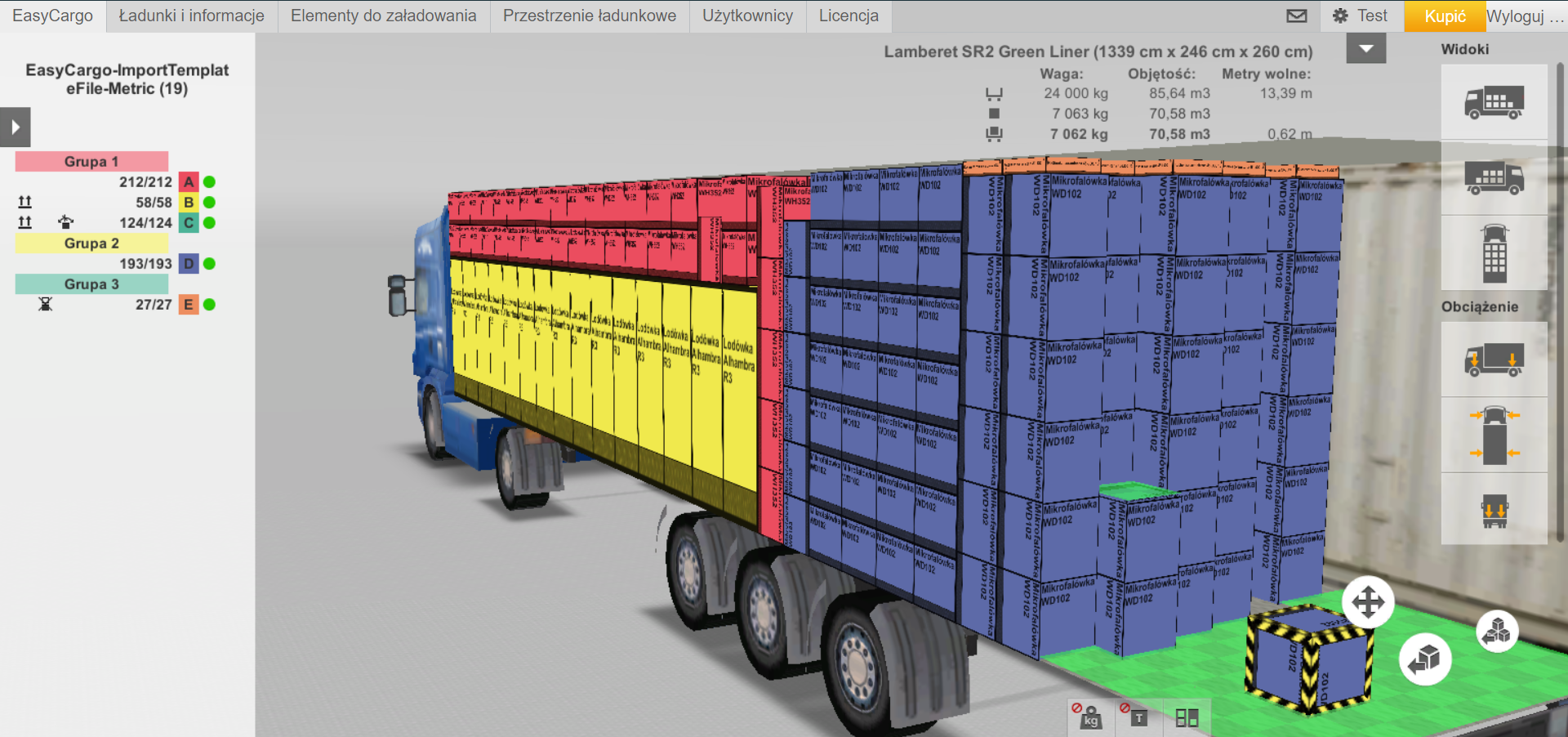
After performing the above steps, you must pass the complete information to the operators. This can be done in several ways. If the operators have access to a computer, you can generate a hyperlink for them, which, when clicked, will show them the entire cargo along with its statistics. Operators can prepare a loading report (basic), export it to Excel, or change the loading mode to “Step-by-step loading” and generate a “Step-by-step loading” report. If the operators do not have a computer or tablet, you can provide them with a printed report.
Operator tasks
The program not only helps to plan the cargo but also accompanies the practical implementation. The operator has the ability to view the cargo on their computer, rotate it, zoom in, etc., or, if required, they can also choose the option to print the report (with one of the cargo views or with step-by-step loading).
The operator can analyze the proposed loading organization, i.e., examine the 3D plan with all its possibilities. How to do this can be seen in the tutorial video Checking the loading plan in 3D view, where it is discussed how to navigate the 3D plan.
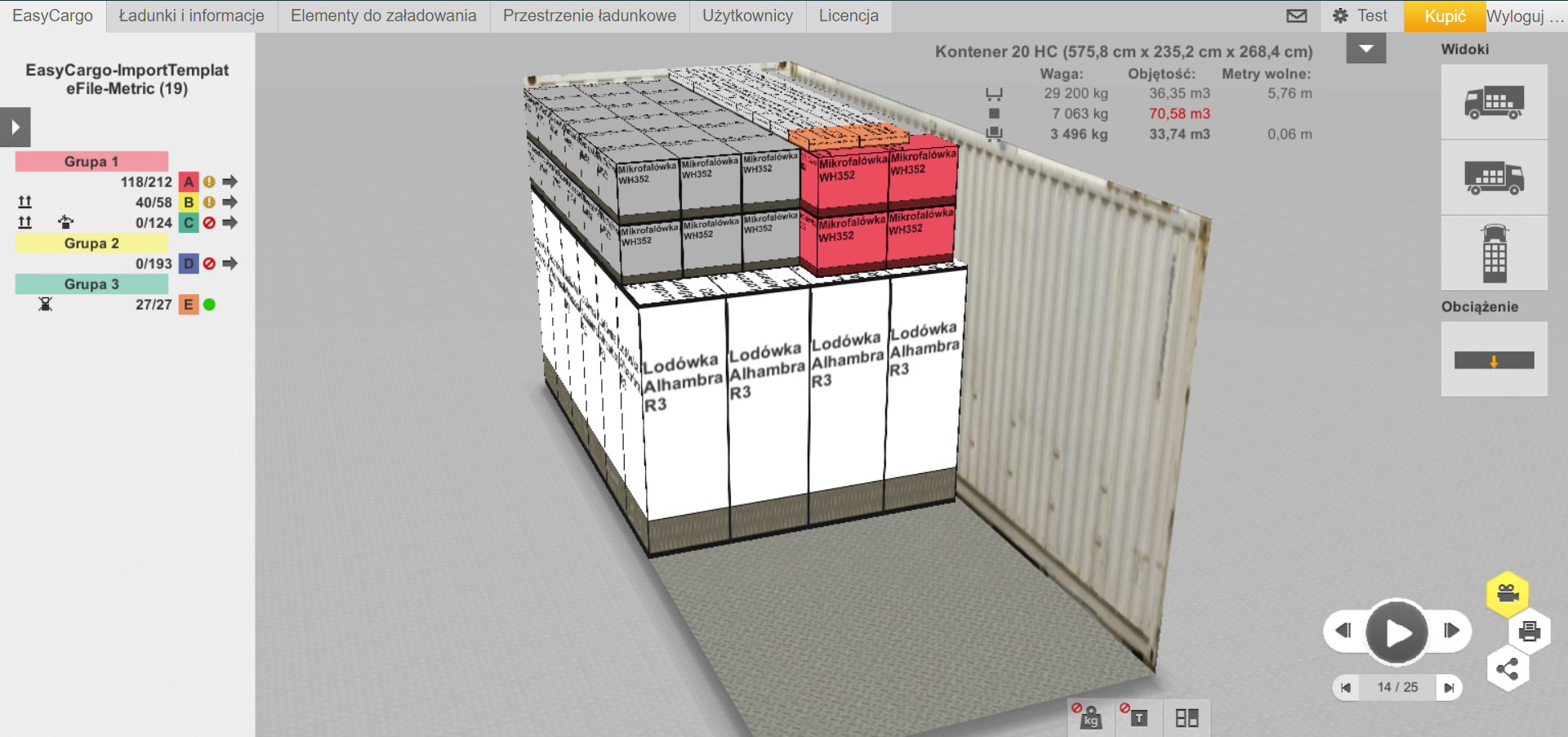
In the provided tutorial, we get the option to click on the camera (at the bottom), and then using the arrows, we can move the “movie” showing the entire loading process from the first to the last package. If we click on the printer, we can print the entire process or export it to Excel.
In the absence of a computer, the operator will receive a printed report where they will learn about the cargo space statistics, total loading volume, know how much free space to leave on one side, and whether they should start loading directly from back to front or leave some free space. In addition, in the Excel program, they will receive all the items to be loaded, as well as the group to which they belong.
In the second report called “Step-by-step report,” you can see the staged loading, illustrating how to proceed when loading the space.
What to do if the link does not work?
Probably the person who generated and sent this link has an expired license or has used up their 24-hour pass, and the application is currently inactive. You should ask the employee who works with the software or the administrator to activate the license, and after receiving confirmation, open the link or “refresh” the page (e.g., using the “CTRL + F5” key combination), which will allow the cargo to be displayed. If the problem persists, please write to: wsparcie@easycargo3d.com.
To learn more about the application, you can visit the EasyCargo website, watch tutorial videos, or register for free without any obligations.